Putting the storefront board on a TV: Web, Apple TV and Android TV
The TV in your booth shows live free spots, occupancy and your tariff; a passing driver looks through the glass, sees there is space, and pulls in. This page covers all three ways to set the board up: with the TV's own browser, with the Apple TV app, and with the Android TV app. The logic is the same in all three — the TV shows a pairing code, you type that code into OtoparkPro on your phone, and the TV permanently becomes your parking lot's storefront.
What you need
- A TV connected to the internet (a smart TV with a browser, an Apple TV, or an Android TV).
- OtoparkPro on your phone, signed in to your cloud account — the board is fed by your branch in the cloud.
Note: The board only ever shows free spots, occupancy and the tariff; plates, amounts and the cash drawer never appear on screen. Setup is one-time.
With Apple TV
- Open the App Store on Apple TV, search for OtoparkPro and install it.
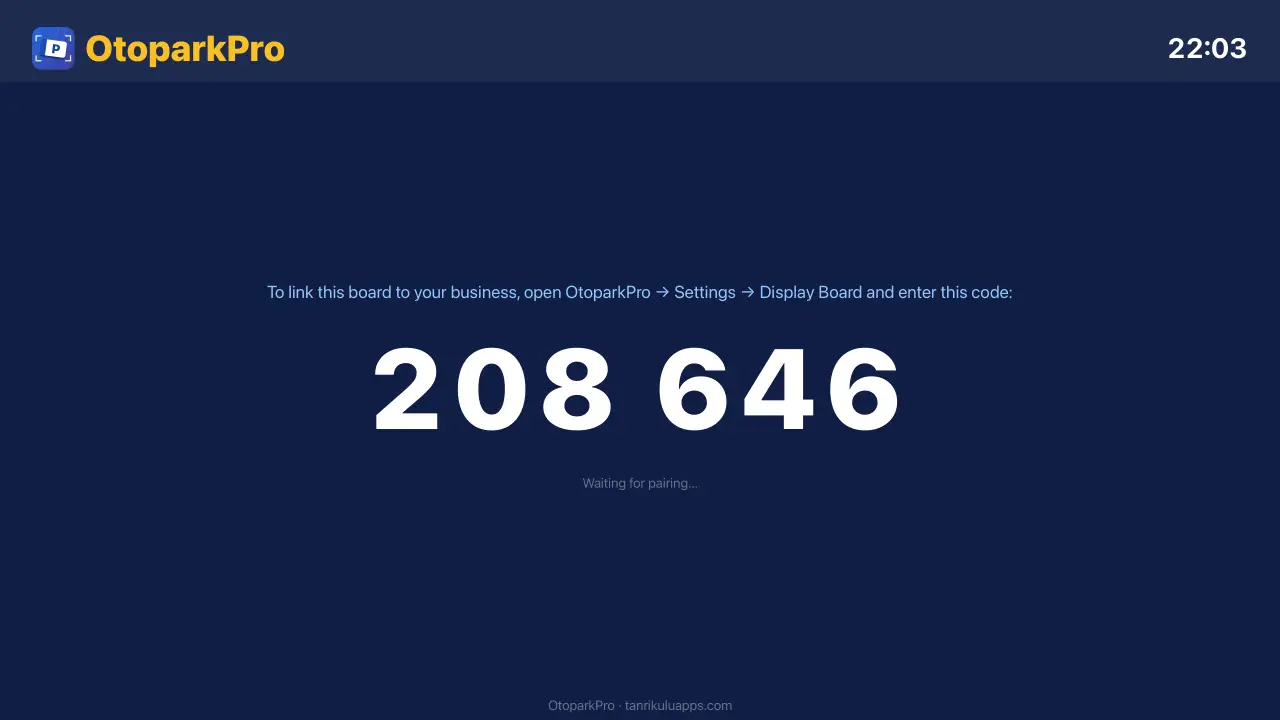
- Launch the app — a 6-digit pairing code appears on screen.
- On your phone open Settings → Storefront Board and type the code. The TV turns into your board within seconds.
With Android TV
- Open Google Play on Android TV and install OtoparkPro.
- Launch the app — the same 6-digit code appears.
- On your phone: Settings → Storefront Board → type the code.
With the web (any TV with a browser)
- Open tanrikuluapps.com/otoparkpro/pano in the TV's browser.
- A 6-digit code appears on screen.
- On your phone: Settings → Storefront Board → type the code.
Tip: If your TV has an app store, prefer the app: it opens straight into the board, with no browser bar or sleep issues to fight.
What the board shows, and how it updates
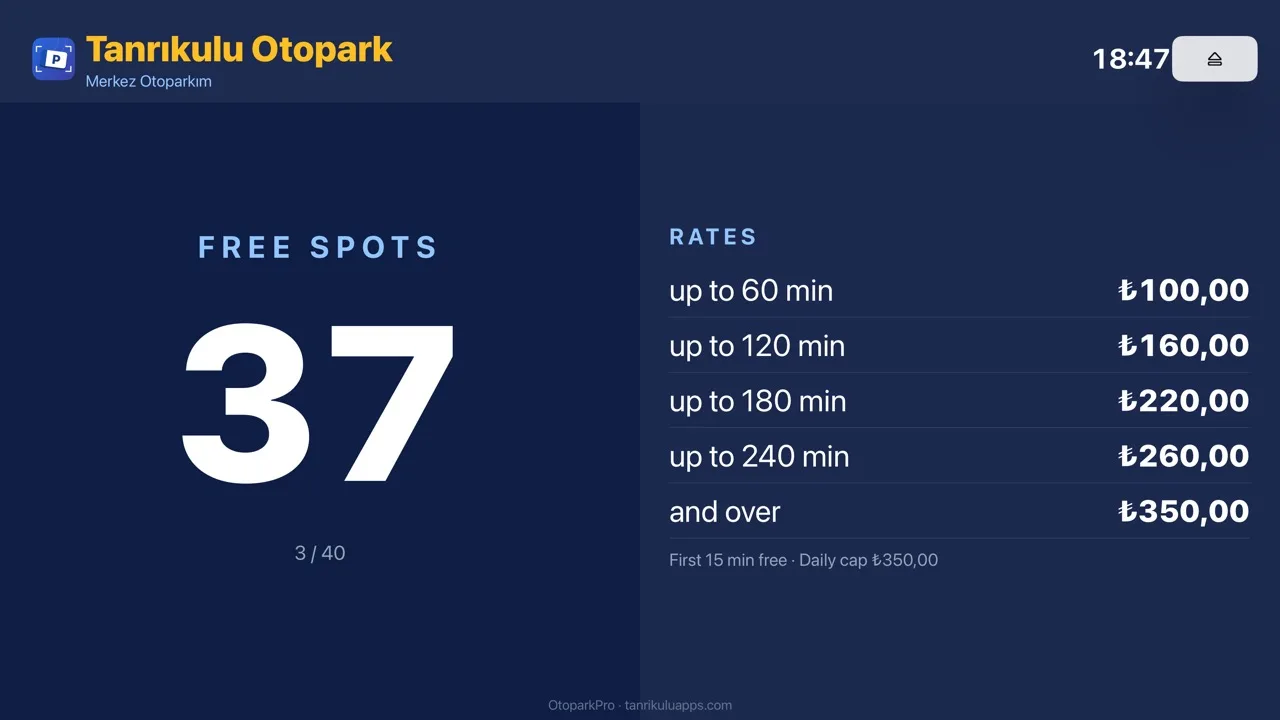
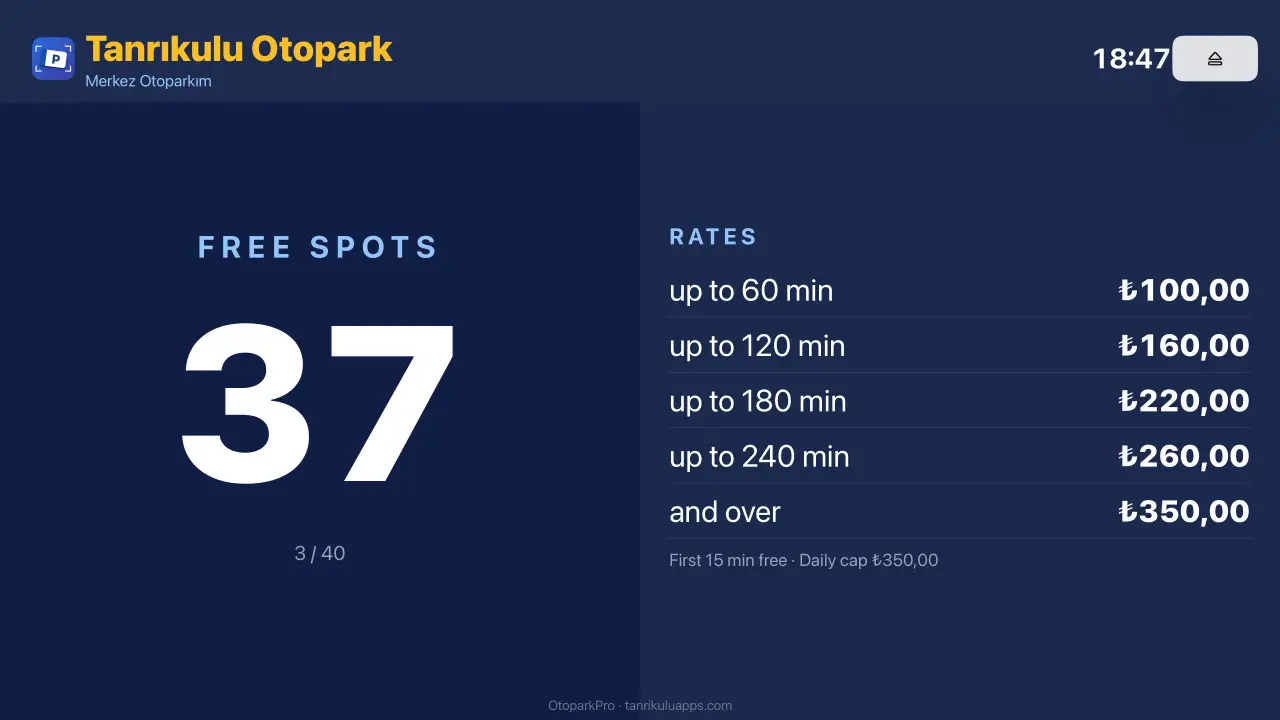
Every vehicle entry and exit changes the free-spot count by itself; change your tariff in the app and the board follows. No touching the screen. Your business and branch names sit at the top of the board.
Unpairing and renewing the code
- Unpair: the ⏏ button at the top right of the TV app removes the pairing; the TV returns to the code screen.
- Renew the code: Renew code on the phone's Storefront Board screen drops old pairings — use it if a TV leaves your hands.
Troubleshooting
- "Wrong or expired code": the code is checked the moment you enter it; make sure you typed the code currently on the TV. If it still fails, your account needs a branch in the cloud — the app will guide you (set up your business first, or join one with the owner's invite code).
- "Board not found": if pairing succeeded but no data comes, wait a few seconds; the board refreshes about once a minute.
- Connection lost: the board keeps showing the last known data with a warning line at the bottom, and recovers by itself when the internet returns. No need to renew the code.