
01
Open the day's schedule
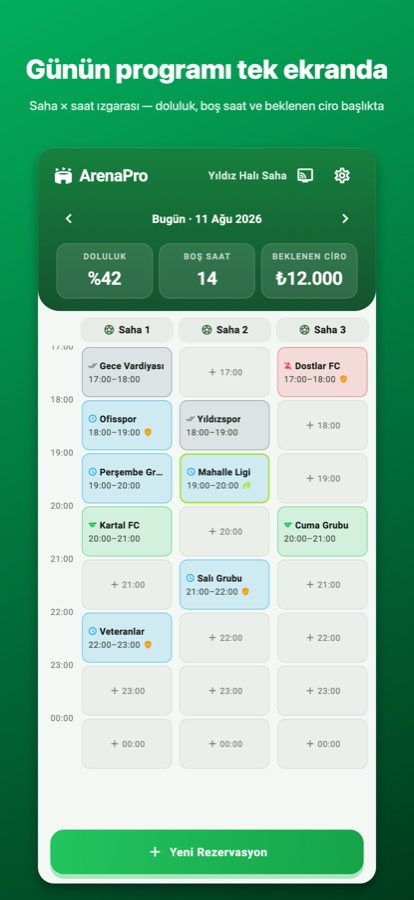
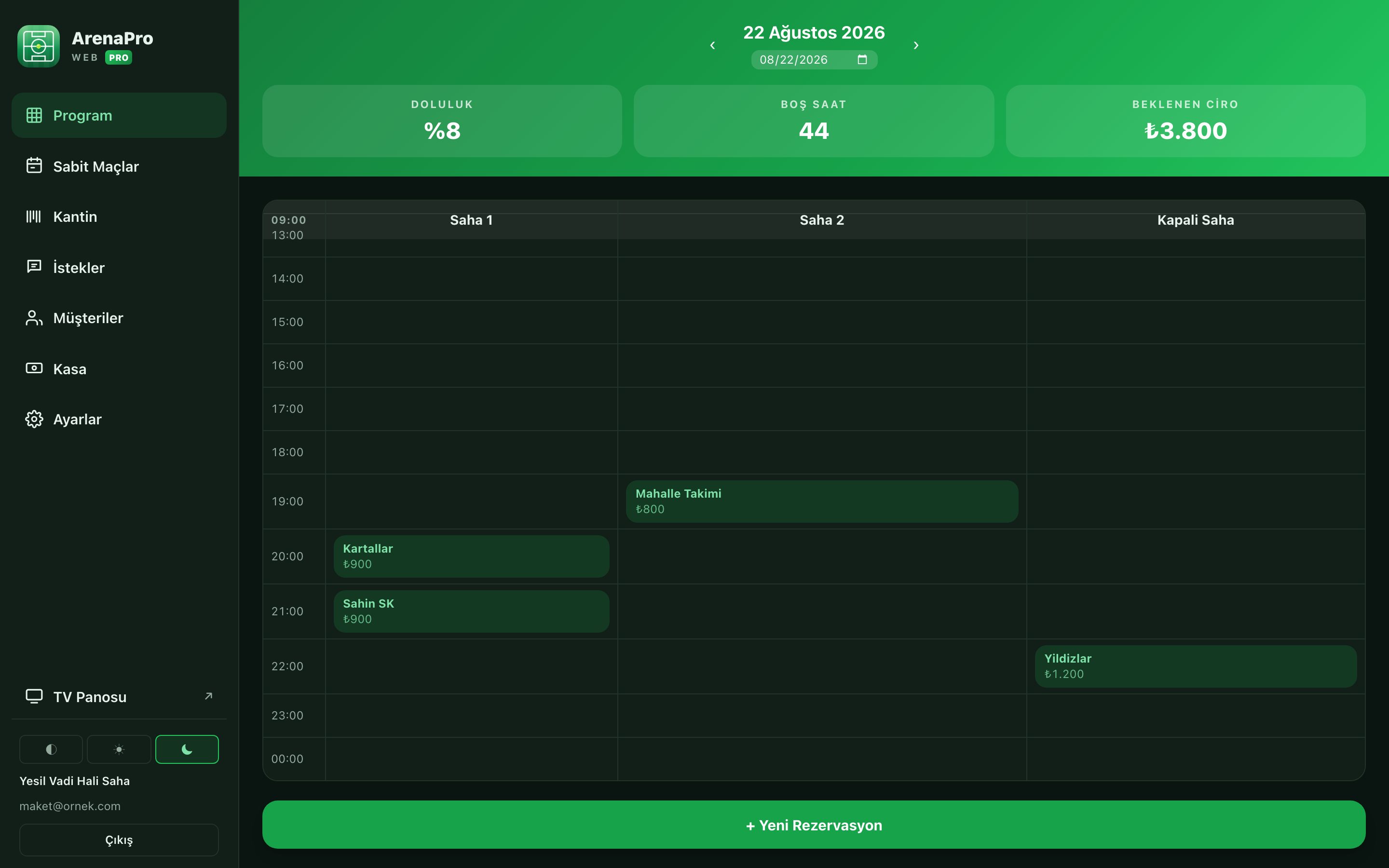
A pitch × hour grid on one screen: what is booked, what is free, and the revenue you expect that day. Tap an empty slot to book it.
Hour-by-hour bookings, weekly regulars, deposits, barcode canteen sales and the day's till — all in one app. No more taking bookings by phone.
Live on the App Store and Google Play. For five-a-side pitches, padel, tennis and basketball venues — first 7 days free.
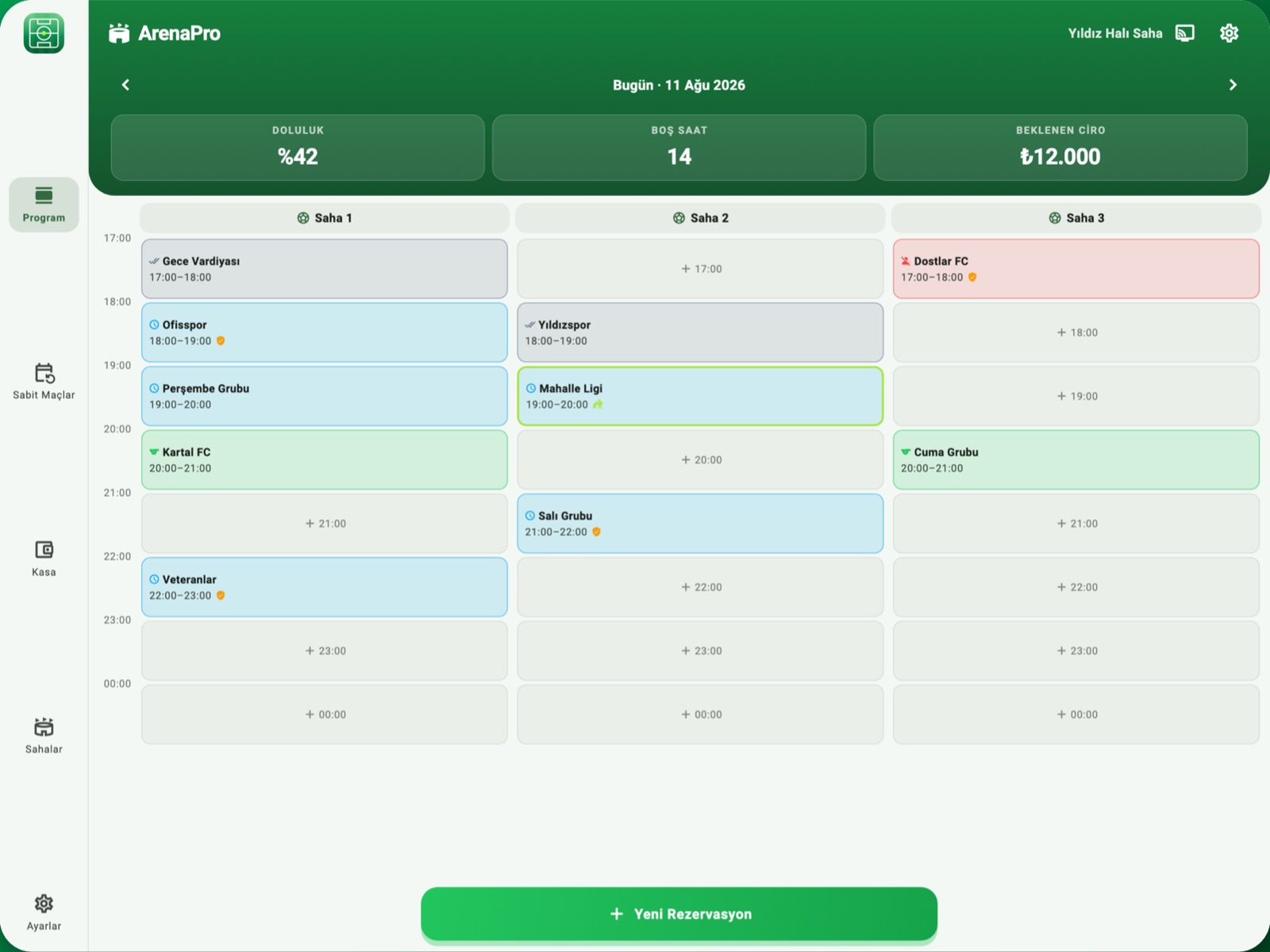
On tablet it's a separate layout, not a phone copy
On iPad and Android tablets the schedule runs landscape: menu rail on the left, court × hour grid on the right — the whole day at a glance on the counter.
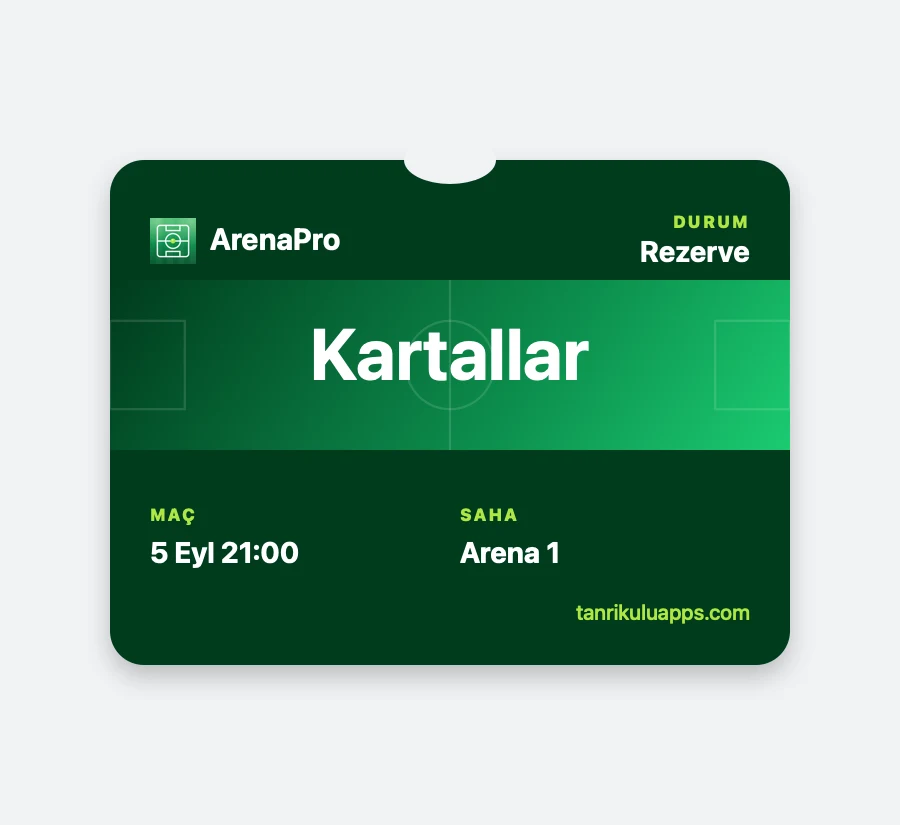
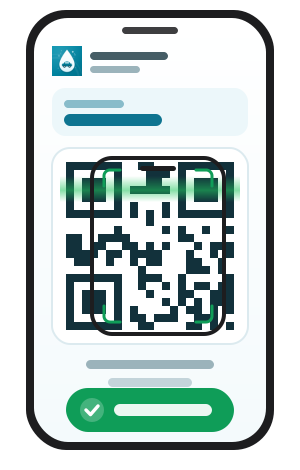
Every booking creates its own QR code. The customer scans it, follows the match live and can add a card to Apple Wallet. If the time changes or the match is cancelled, the news lands on their lock screen, and a reminder arrives an hour before kick-off — on Android the same thing happens through a browser notification. No app to install, no sign-up, no message fees.
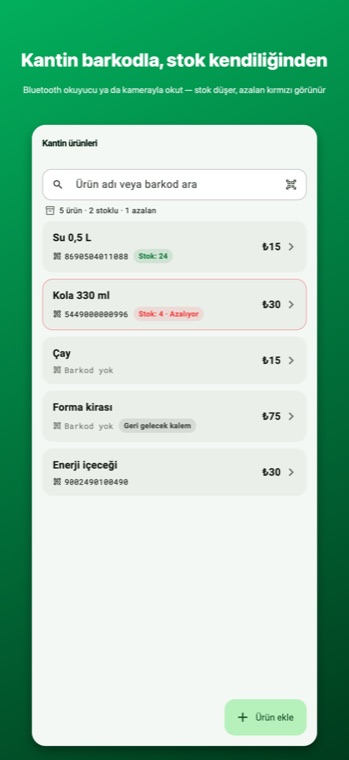
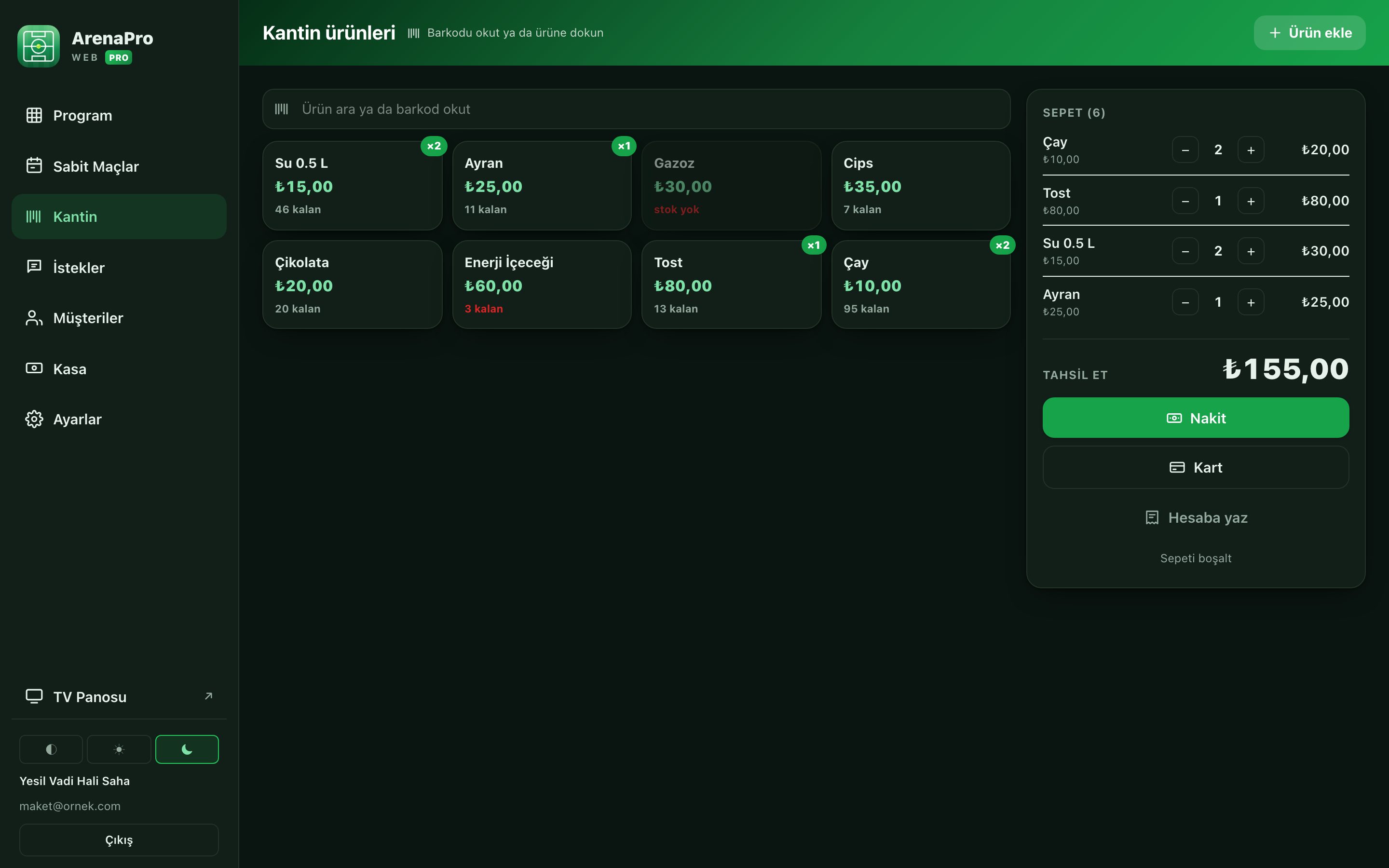
Water, cola, bibs — the canteen is part of the till. Define a product once; at sale time either scan with a Bluetooth barcode reader or point the phone camera. The product is found, the quantity is asked, stock drops.
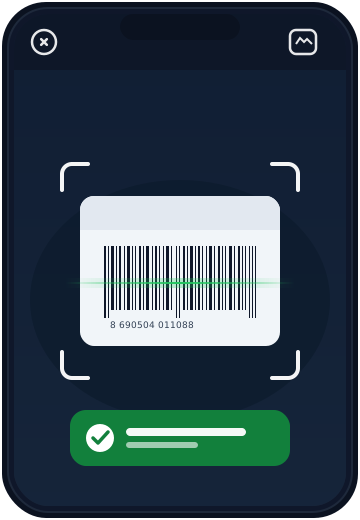
A deposit when you take the booking, the bill when the match ends, water and shirts on the canteen receipt — in all three you simply pick Online as the payment method. The QR code appears on screen, the team scans it with their phone and pays with their own card. The money goes straight into your own PayTR or Stripe account; no balance is held, and Tanrikulu Apps takes no transaction fee on top.
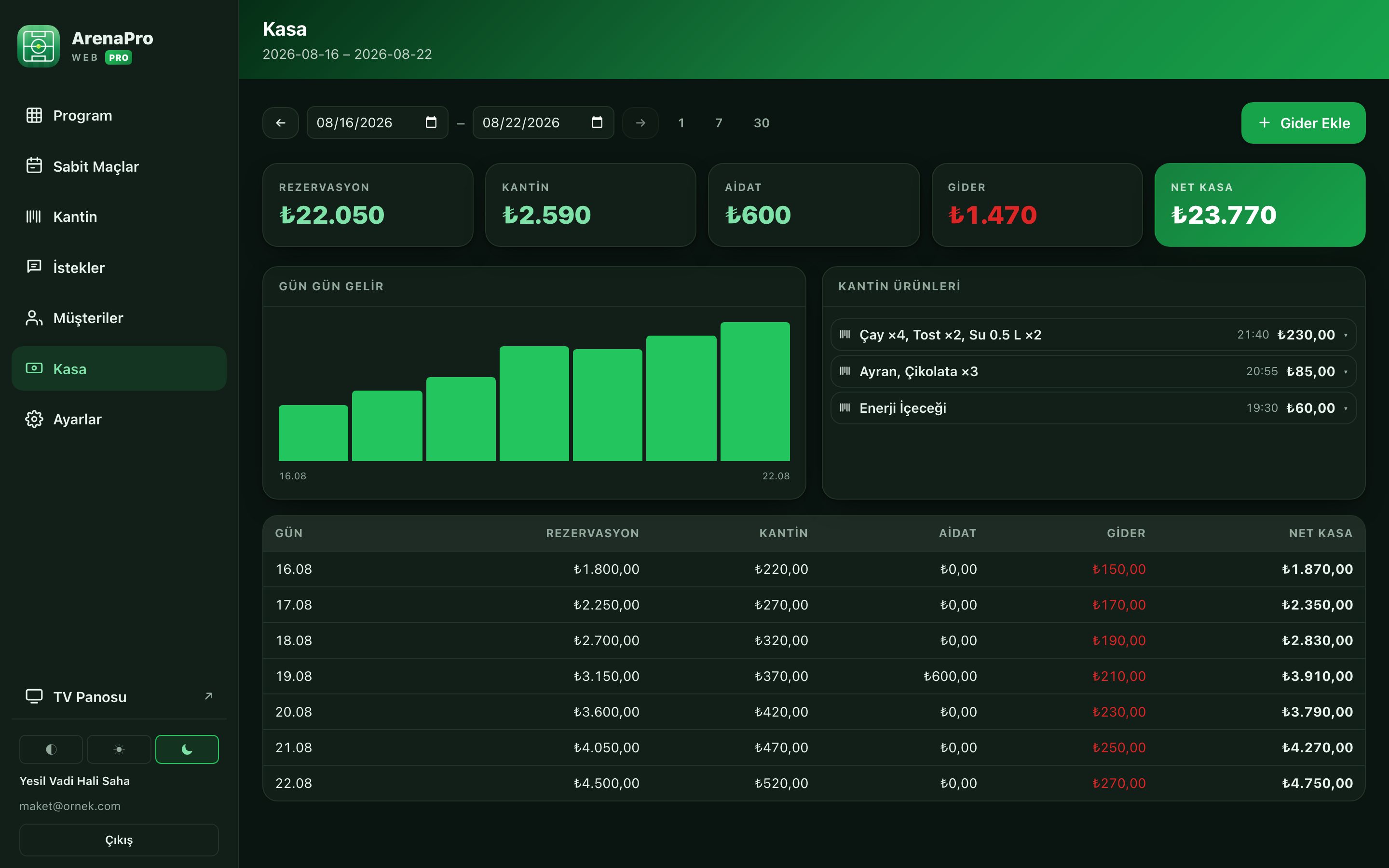
Online takings sit on a separate line in the end-of-day till; they never mix with cash or card takings. No card reader, no POS terminal and no extra subscription needed.
If there's a computer at the desk, open the app there too. Whatever is on your phone is here as well; the two sync instantly.
The web opens for accounts with a subscription and needs an internet connection. Subscriptions start in the phone app; offline use exists only on the phone.
All four take a few minutes — no installer, no computer.
A pitch × hour grid on one screen: what is booked, what is free, and the revenue you expect that day. Tap an empty slot to book it.
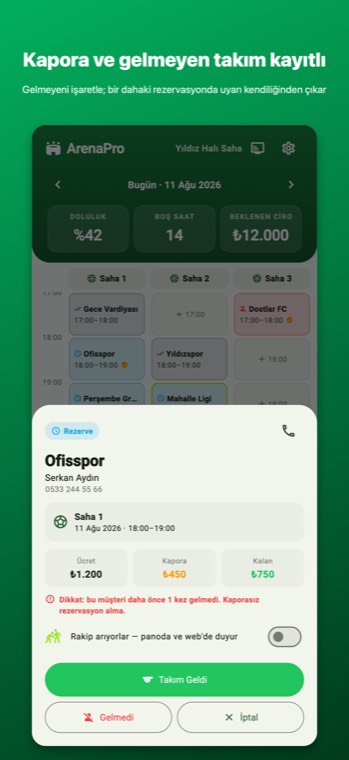
Add a deposit to a booking and mark a team that did not show. Next time that team is written in, the warning appears by itself — you do not have to remember anyone's record.
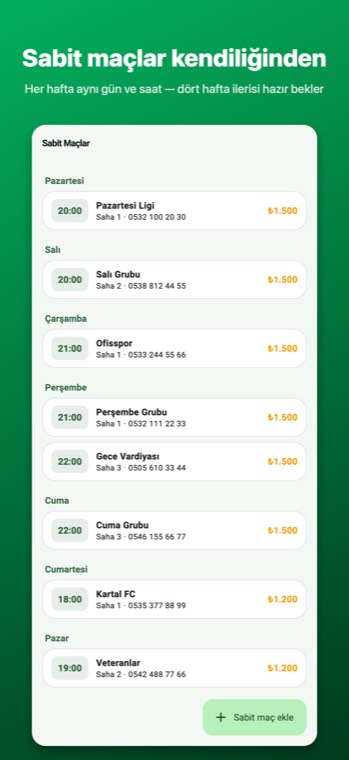
Say "every Tuesday at 21:00, the Veterans" and the next four weeks are already in place. If they cancel a week, one tap frees that slot so the hour is not wasted.
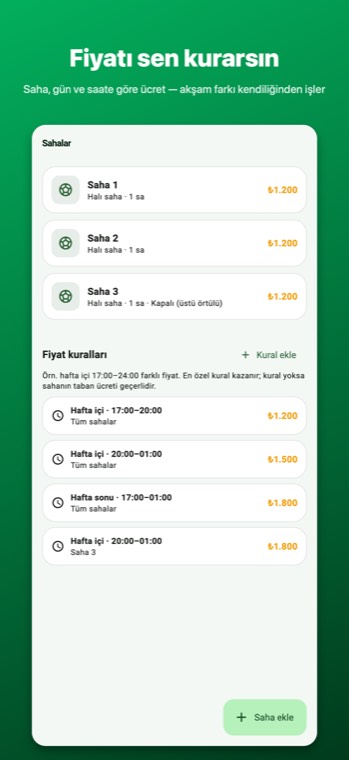
Set a price per pitch, per day and per hour: weekday mornings one rate, evenings and weekends another. The right amount appears by itself when a booking is made.
Water, cola, bibs — define a product once and turn on stock tracking. At sale time scan with a Bluetooth barcode reader or point the phone camera: the product is found, the quantity is asked, stock drops. Items running low show red in the list; items without a barcode you find by name. Put a team's order on the match tab and settle it with the remaining fee at checkout.
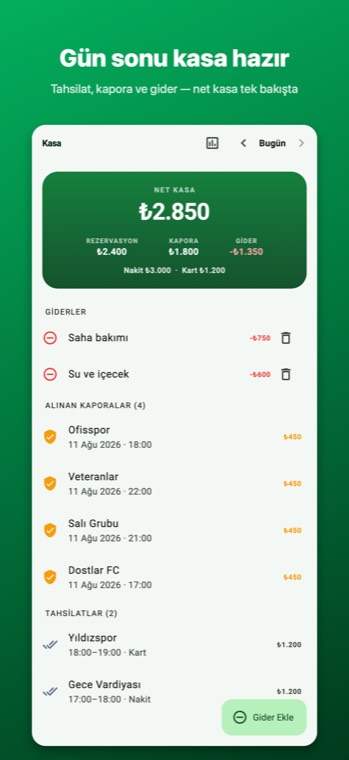
Cash, card, deposits and net — one screen at closing time.
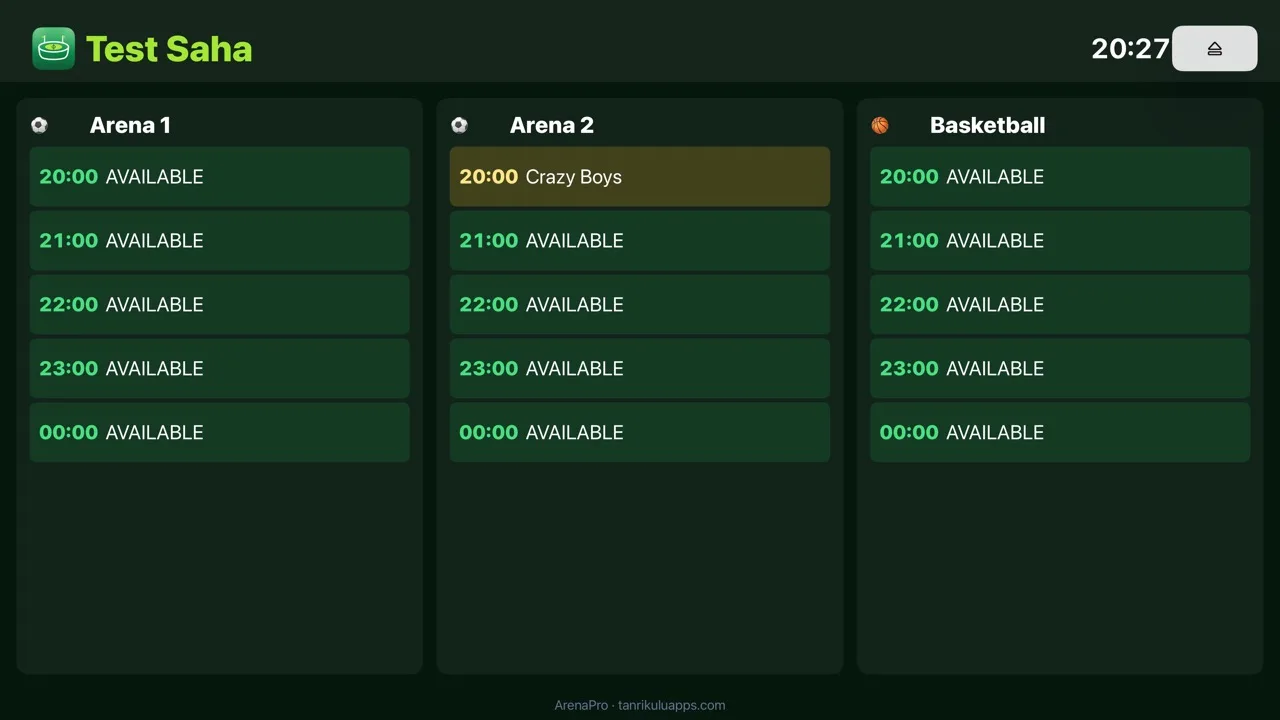
"Any free slots tonight?" Open the board address on the TV at your entrance, scan the QR from the app, and the day's schedule runs on screen. Visitors see it without asking, and you stop reaching for the book.