Canteen: stock-tracked sales with a barcode reader or the camera
Water, cola, tea, jersey rental — the canteen is part of the till too. This page covers setting up products, tracking stock, selling with a Bluetooth barcode reader or the phone's camera, products without a barcode, and putting items on the match's tab.
Setting up a product
- Switch to the Canteen tab in the bottom bar and tap Add product.
- Enter a name and a price.
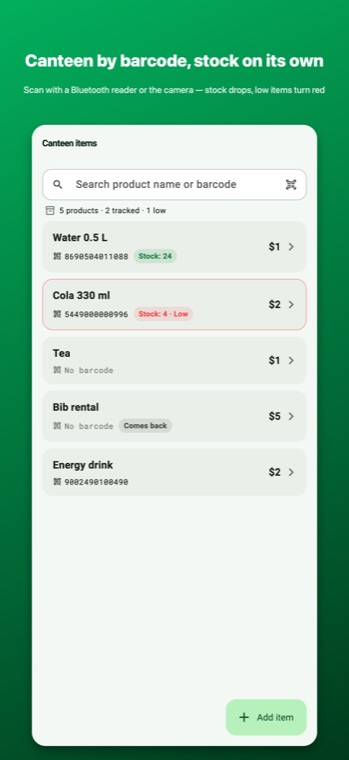
- Barcode: scan the barcode on the packaging with the camera icon in the field, or type it in. Leave it empty for products without a barcode (tea, jersey rental); you'll find them by name at the point of sale.
- Track stock: turn it on for countable products like water and cola, and enter the quantity on hand. Leave it off for things that aren't counted, like tea or rentals.
- Returnable item: tick this for things collected back at the end of the match, like jerseys and bibs; they are tracked on the match card as "Rented / Returned".
Tap a product card to change its name, price, barcode and stock quantity later; this is also where you correct the quantity after a stock count. If a product with the same name already exists, the add screen warns you and opens the existing product.
How stock works
Every sale automatically reduces the quantity of a stock-tracked product; if the sale is reversed, it is added back once. When the quantity drops to 5 or below, the product appears in the list with a red "Running low" badge; the summary at the top of the list tells you how many products are stock-tracked and how many are running low.
Making a sale: three ways
1. Bluetooth barcode reader
Pair the reader in your phone's Bluetooth settings like a keyboard (most readers ship in "HID/keyboard" mode). Scan while the search box in Canteen or the barcode field on the sale screen has focus: the product is found, you're asked for the quantity, and the sale is done. It works just like at a shop counter.
2. The phone's camera
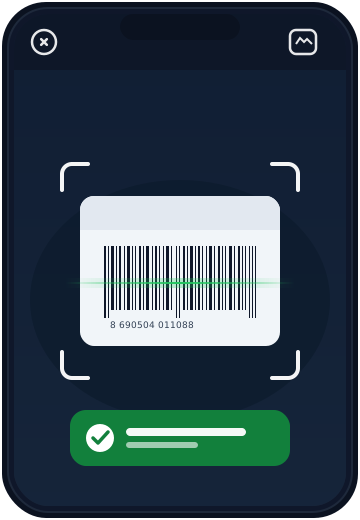
If you don't have a reader, tap the camera icon next to the search box or the barcode field and hold the phone up to the barcode. Once the scan completes, the product comes up.
3. By name
Type a few letters of the name into the search box; this is how products without a barcode are sold.
Who are you selling to?
- Someone not on a court: Sale from the Canteen tab or the Canteen strip in the Till; pick the product, take cash/card/transfer. It isn't tied to a booking.
- The team playing a match: from the match card, pick the product with Add from canteen and Put on tab. The amount is added to the match's "remaining" total; at checkout it is settled together with the court fee in a single tap. See Deposits and no-shows.
How it shows in the till
Canteen sales are a separate income line in the day-end till; the split between cash, card and transfer is preserved. A sale put on the tab lands in the till together with the match's payment when the match is closed.
Common mistakes
- Turning on stock tracking for tea: you'll get a "running low" warning with every cup; keep it off for products that aren't counted.
- Assigning the same barcode to two products: the first one comes up when you scan; keep each barcode on a single product.
- The reader scans but nothing happens: the cursor isn't in the search box or the barcode field; tap the field first.