Customer booking link and request approval
Let customers see the free slots and send a request without calling, and have the slot written into the schedule once you approve. This page covers sharing the link, what the customer sees, how the request reaches you, and the approve/decline flow.
Sharing the link
Settings → Share booking link. The app generates a ready-made message and link with your business's name; send it via WhatsApp, text message or from your social media profile. The link is unique to your business and requires no app: the customer opens it in a browser.
What does the customer see?
- The venue's name and the day's free slots — only booked/free status; team names, phone numbers and amounts are not shown.
- They pick a court and a day and tap one of the free slots; the duration is the court's standard slot (60 or 90 minutes).
- They enter a name and a valid phone number — a request cannot be sent without a number, because that number is the only thing protecting you.
- They tap "Send booking request". The page shows "Your request has been sent to the venue — awaiting approval" and adds a note that payment is made at the venue.
A customer with a pending request at a venue cannot send a second one there.
How does the request reach you?
An amber "Online Booking Requests" strip appears at the top of the schedule screen; you also get a notification on your phone. Tap a request in the strip to see the date and time, name and number.
- Call the customer — you can call the number to confirm before approving. This is what weeds out fake requests.
- Approve — the app checks the slot first: if it has been taken in the meantime, it says "This slot was just taken" and doesn't approve. If it's free, the booking is written into the schedule (with the customer's name and number, at that slot's price rule) and the request becomes "approved".
- Decline — the request is closed and the slot stays free.
The customer's page updates by itself: "Your booking is confirmed" or "not approved". And if you want to call, the number is on the card.
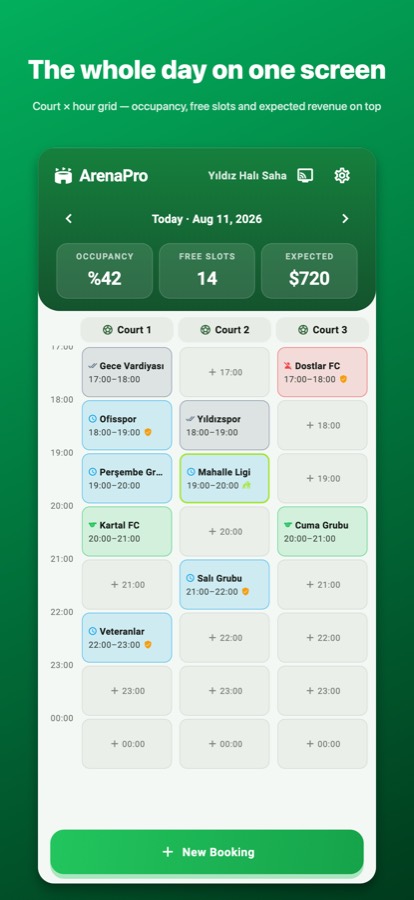
From then on, a regular booking
An approved request is now a normal booking: you can take a deposit, tap "Team Arrived" when they show up, and collect the balance at checkout; if they don't turn up, "No-show" goes on their record. See Deposits and no-shows.
Viewing as a customer
Settings → View as customer switches the app to customer mode: the list of nearby venues and the booking request screen — you see exactly what your customer sees. For your venue to appear in this list, you need to have set your business location in Settings. You switch back to business mode from the same place.
Common mistakes
- "Venue unreachable" — the link was copied incompletely or the cloud account is signed out; share the link again from the app.
- Leaving requests waiting: the customer stays at "awaiting approval", and if the slot is sold to someone else, approval is no longer possible. Approve or decline.
- Shortening or editing the link by hand: the code at the end of the address identifies your business; if it's damaged, the page won't open.